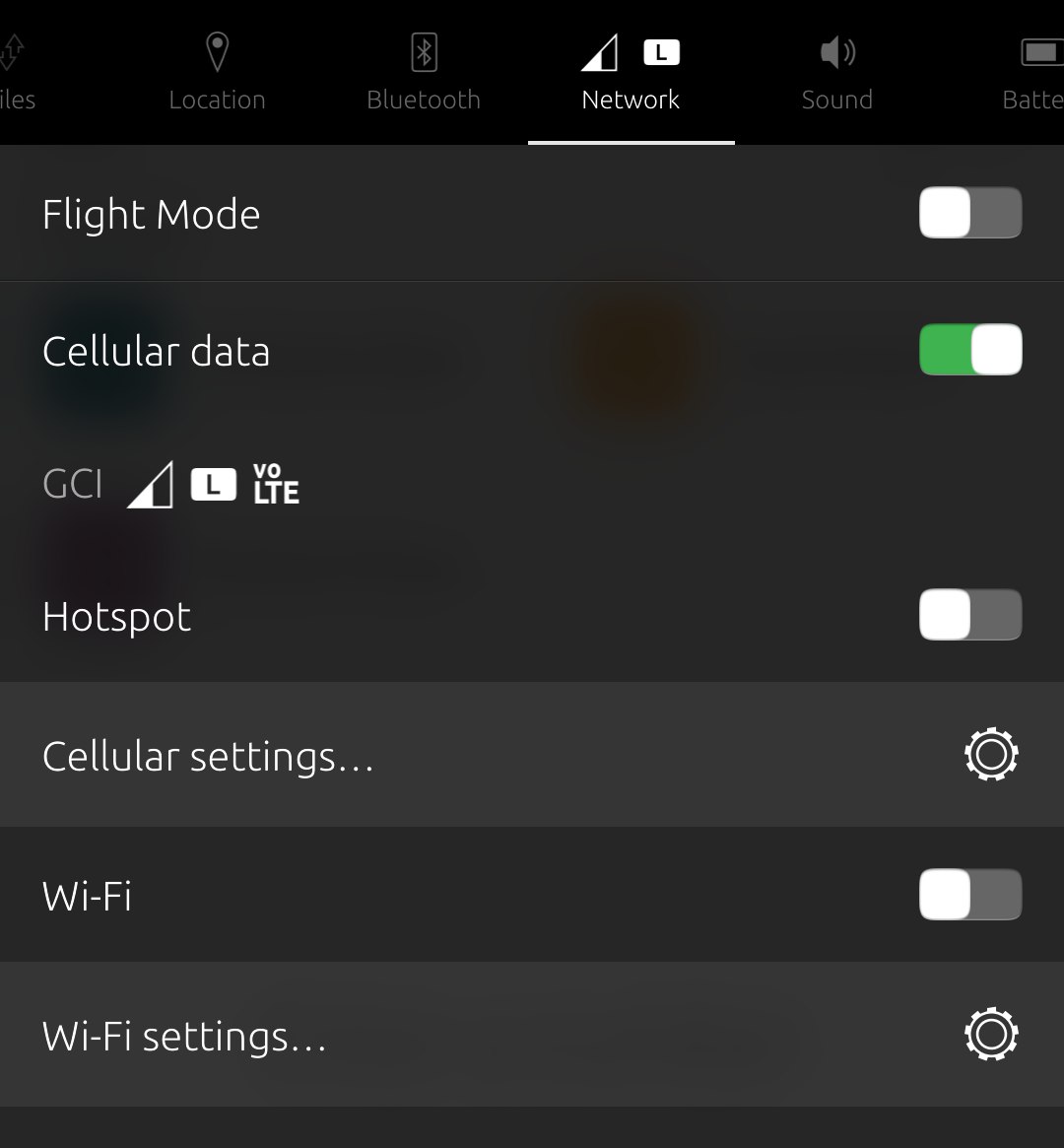
One of the biggest hangups for using Ubuntu Touch in the USA has finally been overcome! Through all the years that Ubuntu Touch has existed as an alternative to Android or iOS, it has always had one really big problem in the USA phone market: it coulnd't phone. Oh, for the first few years it could, back when I tried it out about 10 years ago, back when all cell phones made phone calls on 2G and 3G. Unfortunately for Ubuntu Touch, most of the USA cellular carriers switched to 4G and moved calling to VoLTE - Voice over LTE. This left Ubuntu Touch users without a way to make phone calls, because there was no working VoLTE implementation.
Fast forward a couple of years to last year, and some savvy Ubuntu Touch developers started implementing VoLTE on multiple devices. This was a huge boon to UT which allowed it to be used in many countries, inlcuding the USA with T-Mobile phones. Unfortunately, that still left any AT&T (or MVNO users - resellers like cricket, boost mobile, etc.) users out of luck. Because of AT&T's unfortunate "white list" policy, only pre-approved phones that were on their infamous white list could be used with their services. Oh sure, you could plug your AT&T sim card into any phone, but things like VoLTE wouldn't work, if the phone connected at all. This was a new low in service, in my opinion, but nobody asked me.... Fortunately, UT device developer Rueben [1] has, among all of his other excellent work, ported UT with VoLTE to a phone on the AT&T white list: the Oneplus Nord N10 5G! [2] Rueben also ported the N100, with working VoLTE, which is also on AT&T's whitelist, but the N10 has 5G, meaning the phone will probably last longer as the networks upgrade over time.
My carrier is a reseller, known as GCI. They actually have their own towers, but they are still the old 3G towers, which has been a blessing to me personally, since all of my old phones kept working even after the "3G shutdown" since GCI didn't have the funds nor a real reason to upgrade their towers to 4G. However, they have been slowly working on it, and they do have a deal with AT&T to use AT&T's network for 4G and above, or when you are traveling out of the state of Alaska. So when I heard the above, and some positive test results by other users, I decided to look around for one of these N10's. Fortunately for me, I found a guy who had one that I could pick up for a few bucks. I bought a phone case for it off of Amazon, and went to work switching it over to Ubuntu Touch.
Unfortunately, this was one of the worst phones to switch over, in my opinion, not just because of the tools or files needed, nor that you had to hand edit an XML file, but also because I needed to get an unlock code binary file from the phone manufacturer. However, the phone manufacturer was really friendly, and I will tell you the whole process I went through, if you want to try it out.
NOTE: Which variant of the phone you have does matter. If you have the Metro (2025), or T-Mobile (2028) variant, you can follow along with what I did directly. If you have the Unlocked (2026), or the Europe (2029) variant, you can skip getting a code from the manufacturer, since they have unlocked bootloaders from the factory. If I understand correctly, the AT&T variant cannot be unlocked. I had picked up the T-Mobile variant (2028), and this is what I did to switch it to Ubuntu Touch.
Prep:
-
Unboxed, opened phone, verified it is the 2028, which happened to be on Android 11. Cool.
-
Downloaded Global 10.5.7 firmware [3]. Then Download your original variant firmware. In my case, for the T-Mobile variant, I downloaded the T-Mobile firmware [4], but you can find the other variants online here [5].
Note that the instructions on the Ubports website [2] say you can download the Europe or Global version, but if you want all the USA bands to work, you need to download the Global version.
-
Unzip the firmware for both variants, which will create a new folder with all of the firmware in it.
-
Download oppo_decrypt [6].
Flash Global Firmware
A. Use oppo_decrypt, extracted both of the firmwares, the global variant and your actual variant.
On my linux machine, from within the oppo_decrypt folder I downloaded, I ran:

```
$ python3 ./opscrypto.py decrypt ~/Downloads/PATHTOFIRMWAREFOLDER/FILE.ops
```
This will make a new folder in the firmware directory that has the unpacked firmware.

With a text editor, like Kate, nano, vi, emacs, or whatever, find and edit the settings.xml file of the global variant. You want to change these six fields:

- Project
- ModelVerifyVersion
- ModelVerifyProjName
- RandomPadding
- ModelVerifyRandom
- ModelVerifyHashToken

You will fill in these six fields with the information from the settings.xml file from your actual variant's firmware. You can't just copy the entire settings.xml file over from the actual to the global because there are many different fields in there, only change the six fields mentioned here, save, and exit.
B. Repack the global firmware
On my linux machine, from within the oppo_decrypt folder I downloaded, I ran:

```
$ python3 ./opscrypto.py encrypt ~/Downloads/PATHTOFIRMWAREFOLDER
```

This will make a new firmware file, called output.ops
C. Flash global with the inlcuded MSM tool
In the firmware folder is the MSM tool, which is a Windows executable. At this point, I put the whole global firmware folder on a thumbstick and moved it to a Windows computer. After inserting the thumbstick, I just right clicked the program and ran it as an administrator. Using the MSM tool is complicated by itself, and an explanation would require lots of pictures. However, OnePlus has already written a guide just for that, which you can read here [9].

NOTE: You may need the Qualcomm drivers installed on the Windows machine [7].
Unlock the bootloader
Once the phone booted up, after flashing the stock global Android 10 firmware, I could see the T-Mobile logo was gone, and under settings, the phone was listed as being Android 10. That's great! All of the below are per the instructions from the OnePlus website [8] with some added clarification by me.
-
Skip everything in the setup, and turn on developer options with the usual multiple taps on the build number. Make sure you don't connect to the internet yet, via cellular or WiFi! If it manages to connect at this stage, it will try to download the latest firmware version and will update to a newer Android version, which you do not want to do. This happened to me the first time, and I had to reflash the global firmware again, so keep that in mind.
-
Under developer settings, turn on ADB debugging, turn off automatic updates.
If yours is like mine, it will not allow you to turn on OEM unlock or bootloader unlock yet. Now that you have disabled automatic updates, you can turn on the WiFi or cellular data, and after a minute or two, the OEM unlock/bootloader unlock button will be active, allowing you to then toggle it to OEM unlock.
-
Get the unlock code.
Use ADB to reboot into fastboot with
$ adb reboot fastbootand wait for the phone to reboot. For me, it showed a strange screen with multiple language choices, and I chose English, then it went to fastboot.At this point you can try to unlock it with
$ fastboot oem unlock, but for me it failed saying: FAILED (remote: 'Please flash unlock token first.')Now run the command to get the unlock code:
$ fastboot oem get_unlock_codeCopy all of the output to a text file. You'll need it later.Reboot the phone and get your PCBA by opening the dialer app and dialing *#888#. Write this down, copy it for later.
Head over to the OnePlus website to get your unlock token [10] wich is a binary file you will need to flash. On the form, fill in all of the requested information. If you are lucky, it will accept your submission and you will get the unlock token. Unfortunately for me, it failed, saying that the serial number was incorrect. I believe that this will happen to you too, because it recognizes the firmware as one variant, and the serial number as a different variant. But, it only takes a few seconds to try this, so give it a go.
If, like me, the form failed, then you have to send an email to support@oneplus.com. In this email, I simply said that I purchased a phone and would like the unlock token. I let them know that the website gave me an error. In the email I included:
- get_unlock_code info
- PCBA info
- Serial number
- and proof of purchase, e.g., a reciept from buying it off of Amazon or locally, or whatever.
I don't know if you need the proof of purchase, but some people said if you don't inlcude it, they will ask you about it. I just sent mine with the first email. If you bought it from a friend, you can just do a quick bill of sale and send that. All in all, they sent me three emails saying they were routing my request to the right people, still working on it, escalating the case, and then sent me an email with the unlock token file. This took 8 days in all, if I recall correctly.
IV. Flash the unlock code.
Now that you have the unlock code, reboot the phone back into fastboot, and type `$ fastboot flash cust-unlock <unlock_token.bin>` It will say it is writing the customer unlock file, then say okay.

Now you can actually unlock the bootloader with the usual `$ fastboot oem unlock` command. At the prompt, choose to unlock the bootloader, and you are now ready to install Ubuntu Touch!
Flash Ubuntu Touch
That was a lot of work, but we are in the final stretch now. What you need at this point is the UBports installer. Most Linux distros come with one, and you can just apt-get install ubports-installer or similar. You can also just download it from the UBports website [11] for any OS, like Mac or Windows or Linux.
The plus side is this part is simple. Launch the UBports installer, plug in your phone, and follow the on screen instructions.
NOTE 1: If it doesn't recognize what type of phone it is, just choose the OnePlus Nord N10 5G, also known as "billie".
NOTE 2: If the first part says waiting for phone or waiting for fastboot, or rebooting to fastboot, and it doesn't, reboot the phone into fastboot and the installer will pick up from there. I tried two different versions of the installer, and one had that problem. I can't remmeber wich version had that issue.
NOTE 3: At the time of this writing, if you want the VoLTE to work, choose 24.04.1x/daily for the install. Hopefully it will be moved to 24.04.1x/stable soon, and most likely if you are reading this months or years later, the newer versions will have it in there as well.
Enjoy Ubuntu Touch!
As you can see, that was not for the faint of heart. But, if you stuck with it, you deserve to treat yourself to some ice cream or whatever your favorite munchy is, because that was tough and long in the tooth. Now you can sit back and set up your new to you UT phone and enjoy some VoLTE calling from something that is not Android or iOS!
Linux - keep it simple.
[1] https://gitlab.com/rubencarneiro [2] https://devices.ubuntu-touch.io/device/billie/release/noble/ [3] Global_OxygenOS_10.5.7.zip [4] T-Mobile_OxygenOS_10.5.8.zip [5] All variants firmware [6] oppo_decrypt [7] Qcomm drivers [8] OPO unlock bootloader instructions [9] How to use the MSM tool [10] Unlock token [11] UBports installer